
Change the graphics processor for results

Configure your browser to use a different graphics processor to improve results rendering performance in SimForm.

This procedure was validated on Windows 11 and may differ on other Windows versions.

  1. From the Start menu, type Graphics settings, and select the result under System settings.
  2. In the Graphics settings window, select Add desktop app.
  3. Browse to the folder containing the web browser executable, for example C:\Program Files\Google\Chrome\Application, select the .exe file and click Add.
    Select chrome.exe for a Chrome Browser or msedge.exe for a Microsoft Edge browser.
    The browser is added to the application list.
  4. Expand the added application and open the GPU Preference list.
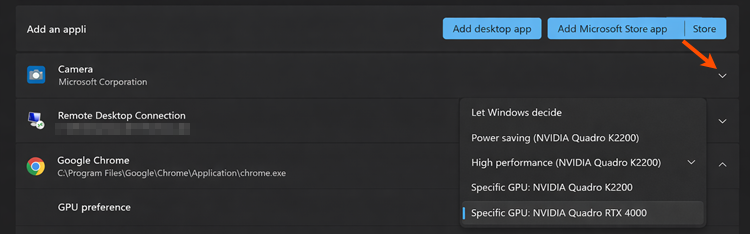
    Windows Graphics settings showing the expanded Google Chrome entry with the GPU Preference options displayed.
  5. Select the graphics processor you want to use.
    • High performance or a Specific GPU uses a higher-performance graphics processor. This option is recommended to improve results rendering in SimForm.
    • Power saving uses a lower priority graphics processor and may reduce rendering performance.
  6. Restart your browser.
  7. (Optional) Restart your computer to ensure that the selected graphics processor is applied correctly and to avoid potential rendering issues.

The selected graphics processor appears in the Graphics Processor section of the Results panel.