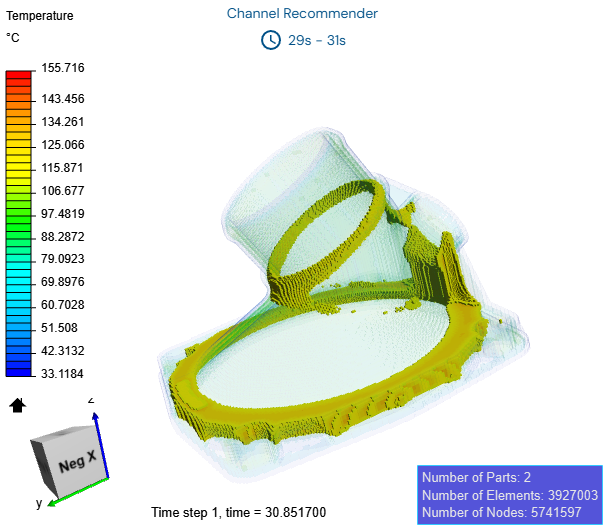
View the recommendation results
Display the recommended cooling regions and inspect the plastic temperature to identify where cooling is most needed.
-
In the Results panel, from the
Type list, make sure
Recommendation is selected.
Recommended cooling regions are shown and color-coded by priority.
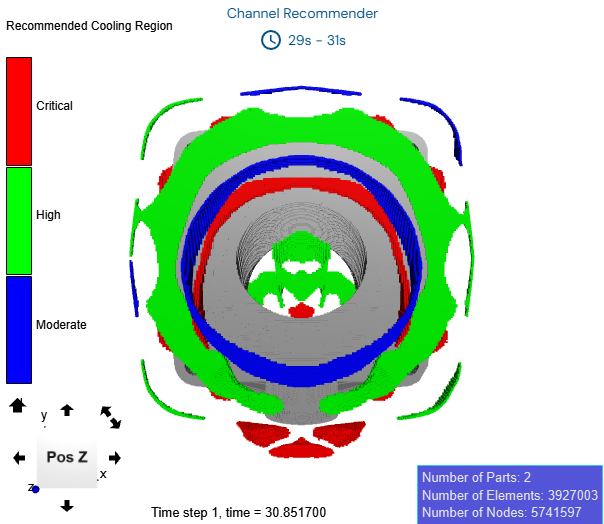
-
Move the Filter slider to
Critical to filter the display to focus on critical
areas.
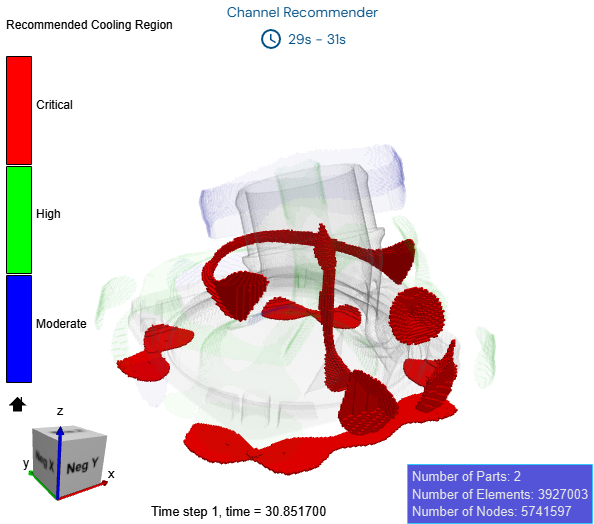
-
Move the Cutting Plane slider to examine interior
regions.
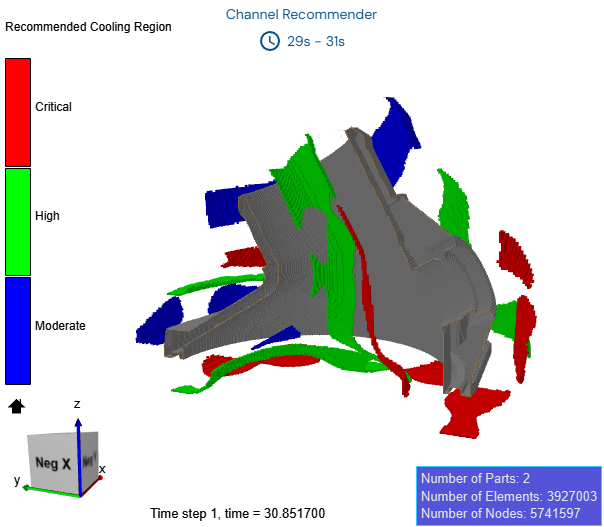
-
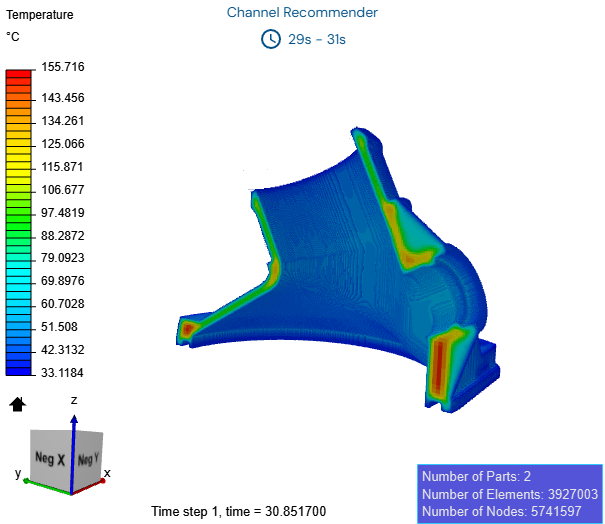
From the Type list, select
Temperature and move the Cutting
Plane slider to view the temperature distribution.
-
On the Results panel, turn off the Cutting
Plane toggle, turn on the Filter toggle,
and move the left handle of the slider to 110°C.
The software displays areas within the selected temperature range. This helps you identify regions that require longer cooling to reach the target temperature.