Create a job
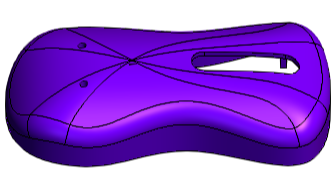
Create a job in an existing project and upload the mouse shell design.
-
From the Jobs panel, click add
 to open the Add a New Job window.
When you create a new project, the Add a New Job window opens automatically.
to open the Add a New Job window.
When you create a new project, the Add a New Job window opens automatically. -
Click delete
 to remove the CAD file from the previous job.
-
Click Add to create a new job.
Note:
Do not refresh the page until all CAD parts are fully loaded as it interrupts the process and prevents the model from loading.
The display window shows the uploaded mold design.